How to Open an IFC File Without Software
How to open an IFC file in your browser, what to check before accepting a BIM handover, and which other free IFC viewers exist.
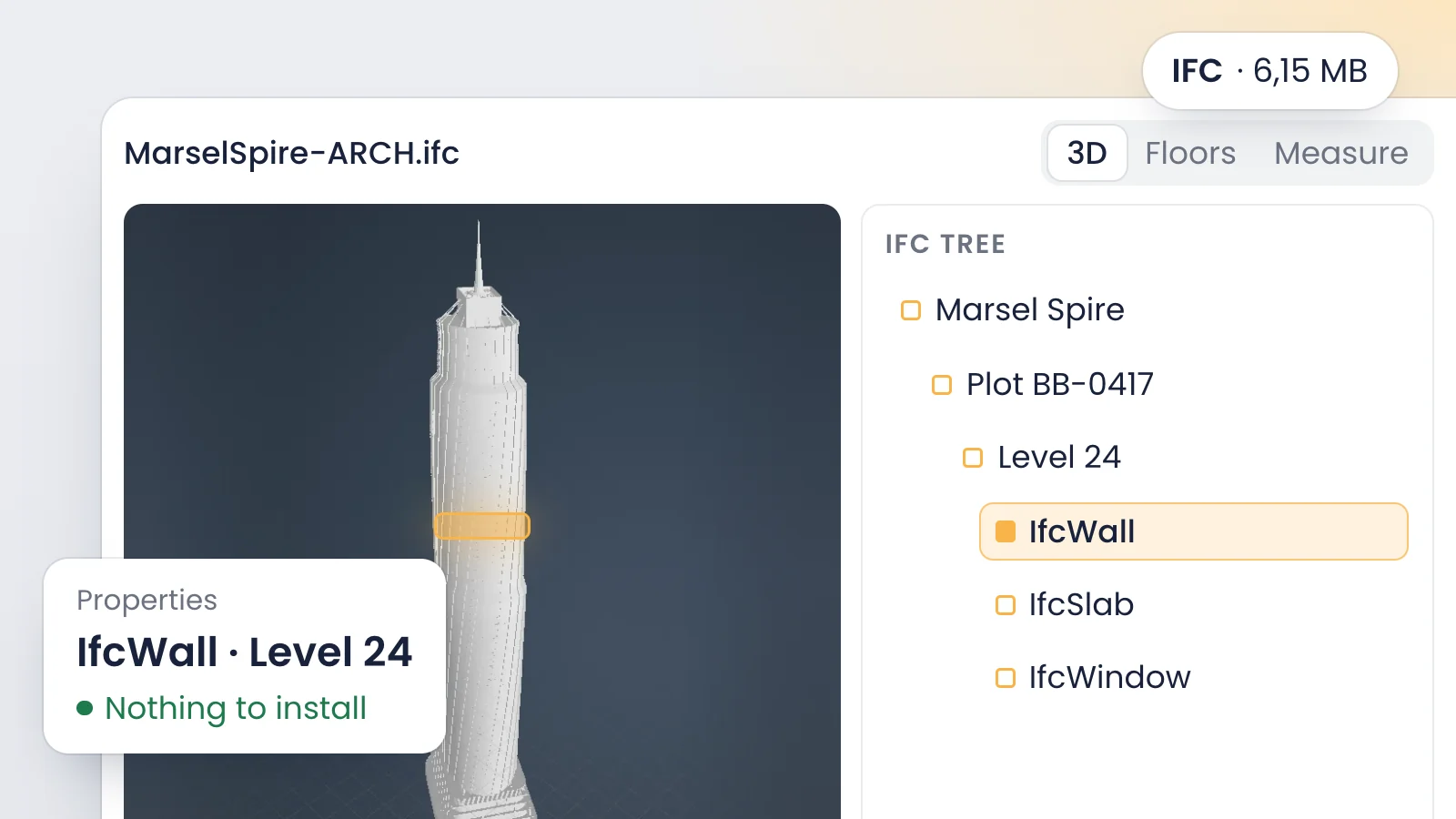
To open an IFC file without installing software, use a free online IFC viewer: open the page, drop the file in, and the model renders in 3D in your browser. The VisionHub free IFC viewer processes the file on your own computer, with no sign-up, and lets you browse storeys, hide elements and read their properties.
What an IFC file is and why you keep receiving them
IFC (Industry Foundation Classes) is the open file format for exchanging BIM models, standardized as ISO 16739. It stores each element's geometry together with its type, its storey and its properties, so any compatible application can read it without the software that created it.
IFC files land in your inbox when someone on the team models in Revit, Archicad, Tekla or Allplan and you don't. The owner's rep reviewing the design, the site manager checking a level, the GC's project engineer pricing a change and the public agency receiving a contract deliverable all face the same problem. None of them needs an authoring license to look at the model. They need a viewer.
How to open an IFC file in your browser, step by step
With the VisionHub viewer the process looks like this:
- Open the online IFC viewer in an up-to-date desktop browser.
- Drag your .ifc file onto the window, or pick it from your file browser. If you don't have one handy, load the sample model to practice.
- Wait while the viewer parses the file and builds the geometry. Large models take longer, and your computer's memory sets the limit.
- Orbit, zoom and pan with the mouse. If you lose your bearings, fit the whole model back in view.
- Expand the storey tree to see which elements sit on each level, and hide the storeys that get in the way.
- Click any element to see its IFC class, its attributes, and its property and quantity sets.
- Turn on the horizontal section and lower it to the height you need to look inside a floor.
The file never travels to a server. The viewer reads and draws it inside your browser, so the model stays on your machine. That matters when a contract restricts where project data can be hosted, which is common on public, defense and critical-infrastructure work.
What you can check in the model
A viewer is not just for spinning a building around. The useful part is confirming that the information the model claims to carry is actually there. Here is what the free viewer covers and where you need another tool:
What to check | VisionHub free viewer |
|---|---|
Storeys and their contents | Yes, in the storey tree |
IFC class of each element | Yes, on selection |
Unique identifier (GlobalId) | Yes, in the attributes |
Property sets (Pset) | Yes, on selection |
Exported quantities (Qto) | Yes, if the author exported them |
Inside a floor | Yes, with the horizontal section |
Classification (Uniclass, OmniClass…) | No: use a desktop viewer |
Measuring distances, areas or volumes | No: that lives in the platform's BIM module |
A note on quantities. The viewer shows the ones embedded in the IFC; it does not compute them. If a wall carries no quantity set, you won't see its area, and that alone tells you something about how the model was exported.
What to verify before you accept an IFC handover
Receiving an IFC is not the same as receiving a usable IFC. Before you sign off a deliverable or use the model for takeoffs, run through this list:
- The file opens without errors, and nothing floats far away from the building, which points to a coordinate problem.
- Storeys have clear names and sit in the order and at the elevations shown on the drawings.
- Elements use the right IFC class: a wall as IfcWall, a slab as IfcSlab, not everything dumped into IfcBuildingElementProxy.
- The properties required by the contract's information requirements are filled in, not empty.
- Exported quantities are in the right order of magnitude compared with the estimate.
- The agreed classification system is applied. Check it in a viewer that displays it.
- The schema version matches the contract. Open the .ifc in a text editor: the FILE_SCHEMA line in the header tells you whether it is IFC2X3, IFC4 or IFC4X3.
This check matters more as owners write IFC into their contracts. Spain's central government, for example, requires IFC on large public works under its public-sector BIM mandate.
Other free IFC viewers
No single viewer does everything. Here is a short list of free alternatives, based on their official websites as checked in October 2026:
Tool | Runs on | Good for |
|---|---|---|
Browser | Opening and checking an IFC without uploading it | |
Browser | Sharing Revit models with people who have no license | |
Windows and macOS | IFC review and issues, free mode | |
Desktop (PC) | Viewing, converting and editing IFC | |
Desktop, built on Blender | Native IFC editing, open source | |
Desktop | Lightweight viewer, free for commercial use | |
Windows, macOS and Linux | License-free desktop viewer |
Pick by task. To look at a model without installing anything, use a web viewer. To review classification, fix properties or re-export, use a desktop tool such as Bonsai or usBIM.viewer+. To coordinate issues across trades, use one that speaks BCF. And with any online viewer that uploads your file, read where it stores the data before you drop in a confidential model.
From viewer to jobsite: comparing the model with what was built
A viewer tells you what should be built. It can't tell you what has been built. During construction, that second question is the one that matters, and you answer it by putting the model next to real, dated images of the jobsite.
That is the job of the VisionHub BIM digital twin module. Inside a shared project you can load and overlay several IFC models, measure distances, areas and volumes, cut sections, and sync the model's virtual camera with a live jobsite camera. With the model and the real image framed the same way, you compare them side by side or by fading one over the other.
Two ways teams use it:
- An engineering firm overseeing a pumping station overlays the pump room model on the fixed camera feed every week to check that plinths and headers follow the design.
- A GC building a distribution warehouse pairs the model with date-to-date photo comparison to record which portal frames were up at each pay application.
The BIM viewer also displays point clouds and Gaussian Splatting or NeRF models captured by drone or laser scanner, so you can see the site's real state in 3D next to the model. Automatic deviation detection is on the roadmap and not available yet. For the bigger picture, our guide to the construction digital twin covers buildings, linear projects and energy sites.
Frequently asked questions
Do I need to sign up to use the free IFC viewer?
No. You open the page, load your file and start reviewing it. There is no account to create and no email to hand over. All you need is an up-to-date browser on a computer with enough memory for the model size. If you later want to share the model with your team or compare it with the jobsite, that is the platform.
Is my IFC file uploaded anywhere?
No. The viewer downloads its parsing engine when the page loads and then processes the file inside your browser. The model is never sent to a server and is not kept once you close the tab. That makes it safe to use with confidential project models without asking anyone for permission to upload them.
Can I open a Revit RVT file?
No. The viewer reads IFC only, the open format. The practical fix is to ask the design team for an IFC export, which many contracts require anyway. If all you have is the RVT and you can't get anything else, Autodesk Viewer opens it in the browser with a free Autodesk account.
What if the model is slow or won't load?
Very large models eat a lot of browser memory. Close other tabs, try a computer with more RAM, or ask for the model split by discipline: architecture, structure and MEP as separate files. If it won't open in any viewer, the file may be corrupt or badly exported, and it should go back to its author.
How is the free viewer different from the VisionHub BIM module?
The free viewer opens one model at a time, on your machine, for inspection. The BIM module works inside a project with unlimited users and permissions: it overlays several models, integrates point clouds, measures, cuts sections and compares the model with your jobsite cameras. The first is for checking a handover; the second is for tracking construction.
Conclusion
Opening an IFC no longer means installing software or paying for a license. A web viewer lets you check storeys, classes and properties in minutes, and a short checklist keeps you from accepting a model that later fails for takeoffs or facility management. The next step is comparing that model with the real jobsite, and that takes dated images. Try the free IFC viewer with your own model and, if you want to see it next to your jobsite cameras, book a demo or price the modules in the pricing calculator.